Start with LeStallion’s active shortlist for 7 Top Mini PCs for Basic Office Work and Small Spaces. This Fly.io guide adds practical buying context around everyday performance, ports, dual displays, heat, mounting, upgrades, and setup planning before comparing individual mini PCs.
How to use this mini PC guide
This support hub is for people who want a smaller office computer without accidentally creating cable clutter, noise, heat, or upgrade frustration. It does not claim hands-on testing of every current product batch. Instead, it turns mini PC specifications into practical workstation questions.
For basic office work, the best mini PC is usually the one that runs everyday software calmly, connects the real peripherals, stays quiet enough for the room, and can be supported when something goes wrong. A tiny box is only a win if the whole desk becomes easier to use.
Use these notes beside the product shortlist to check processor needs, memory, storage, ports, display support, mounting, warranty, and long-term expectations. The goal is a compact workstation that feels ordinary in the best way: fast enough, tidy enough, and predictable enough for daily work.
Think about the full station before the computer itself. A receptionist desk may need front USB access and wired networking. A bookkeeping desk may need two monitors and reliable storage. A meeting-room controller may need quiet operation and quick restart behavior. A home-office corner may care most about cable routing and monitor mounting.
Also plan the first maintenance moment. Someone will eventually install updates, reconnect a printer, check a frozen app, or replace a cable. If the mini PC is mounted where no one can reach it, the clean setup becomes frustrating. Compact should still mean serviceable.
Processor, Memory, and Storage for Everyday Office Apps
Define basic office work honestly. Basic office work usually means browser tabs, email, documents, spreadsheets, video calls, cloud dashboards, PDFs, accounting portals, and light image handling. It does not always require a tower, but it does require enough processor headroom, memory, and storage so the machine does not feel tired after updates.
Memory matters more than marketing. A mini PC with too little RAM can feel slow even when the processor name looks modern. For shared office desks, reception stations, or bookkeeping work, choose memory for the number of browser tabs and apps that stay open together.
Storage should leave breathing room. Small solid-state drives fill quickly with system updates, downloads, scan folders, and sync tools. Check usable capacity, expansion options, and whether the device allows an extra drive before treating a low-price configuration as a long-term workstation.
Avoid overbuying for simple stations. A basic email-and-document desk may not need gaming-class graphics or a premium processor. Spend instead on reliability, ports, warranty, quiet operation, and enough memory to keep daily work smooth.
Plan the first year, not only day one. Office computers collect updates, security tools, printer utilities, and cloud sync agents. Choose a mini PC that still feels sensible after that normal software weight arrives.
Ports, Dual Displays, and Desk Cable Planning
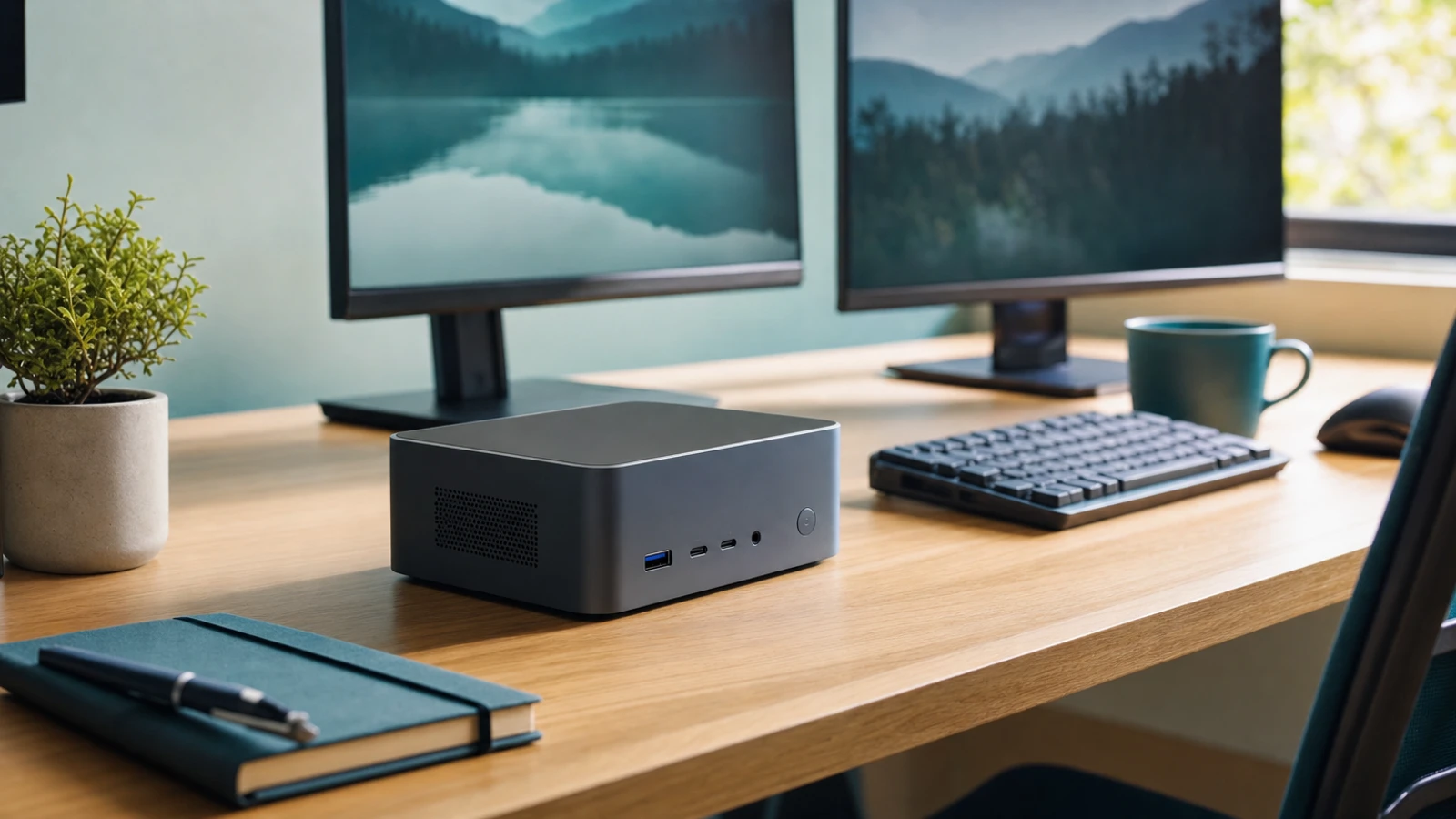
Count real devices. Before choosing, list keyboard, mouse, webcam, headset, printer, scanner, card reader, external drive, Ethernet, speakers, and monitors. A compact box with too few ports can create a messy hub chain that defeats the clean-desk goal.
Dual display support needs proof. Many office users want two screens, but output ports and resolution limits vary. Confirm the exact HDMI, DisplayPort, USB-C, or Thunderbolt behavior before assuming the mini PC will drive both monitors cleanly.
Ethernet can still matter. Wi-Fi is convenient, yet office printers, point-of-sale tools, file shares, and video calls may behave better on wired networking. A mini PC with built-in Ethernet can save adapter trouble.
Front ports change daily comfort. USB ports on the front make flash drives, scanners, and headsets easier. If every port is hidden behind a monitor, a small computer can become awkward even while taking almost no desk space.
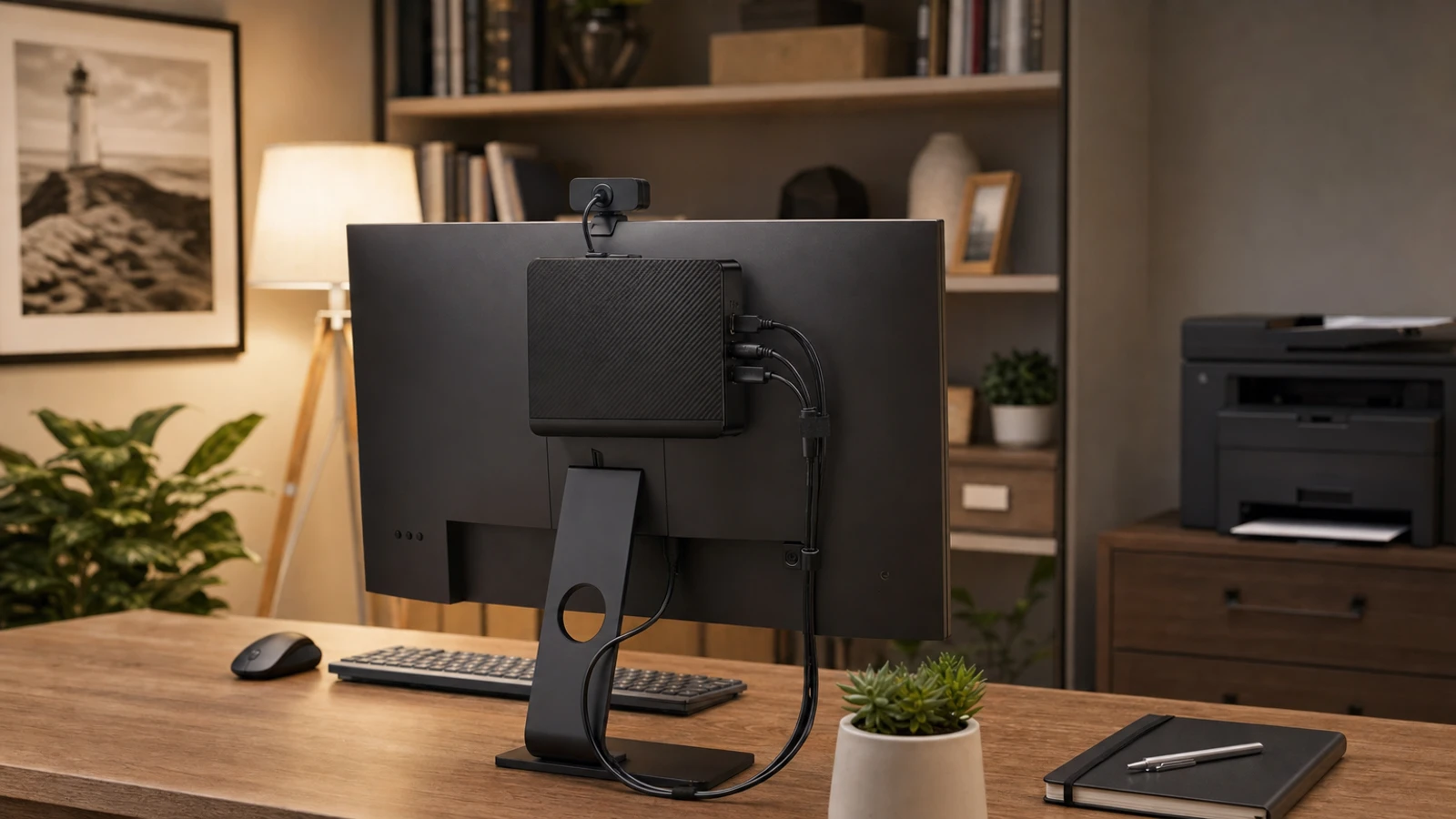
Cable length decides placement. A mini PC mounted behind a monitor still needs power, display cables, USB access, and ventilation. Measure cable paths before buying mounts or assuming the box will disappear neatly.
Noise, Heat, and Placement in Quiet Work Areas
Quiet offices expose small fans. A mini PC that sounds fine in a store may be distracting in a quiet reception area or bedroom office. Look for comments about idle noise, fan ramping during calls, and whether the device hums on a desk.
Heat affects comfort and lifespan. Small cases concentrate heat. Good ventilation, sensible placement, and realistic workloads help the machine stay stable and comfortable over long days.
Do not bury the vents. A tiny computer is easy to tuck behind papers, under a shelf, or inside a cabinet. That can trap heat and dust. Leave room around vents and keep the power brick where it can breathe too.
Video calls raise the workload. Meetings, screen sharing, browser tabs, and background sync can make fans spin. If the station will host calls, judge noise and thermals under that kind of workload, not only at idle.
Dust planning is practical. Small office computers often sit near floors, printers, or fabric. Easy access for gentle cleaning can matter more than an invisible mounting spot.
Mounting, Footprint, and Small-Desk Organization
Small is only useful when reachable. A mini PC can free desk space, but it should not make power buttons, USB ports, or troubleshooting impossible. Mounting behind a monitor works best when cables and access remain sane.
VESA mounts need compatibility checks. Some mini PCs include brackets; others require optional hardware. Check monitor mount patterns, screw lengths, clearance, and whether the combined setup still allows monitor adjustment.
Reception desks need tidy resets. Shared stations collect notes, labels, scanners, receipt printers, and cables. A mini PC should make the station easier to reset at the end of the day, not create a hidden knot of adapters.
Power bricks need a home. The computer may be tiny while the power adapter is not. Plan where the brick sits, how it is secured, and whether it blocks outlets or looks messy below the desk.
Leave room for service. If someone has to unplug a frozen device, add a drive, or check a serial number, the placement should allow it without dismantling the entire workspace.
Upgrade Paths, Warranty, and Longevity Expectations
Upgradeable parts extend usefulness. Some mini PCs allow RAM or storage upgrades; others are sealed. For an office expected to last several years, service access can be more valuable than the smallest possible enclosure.
Warranty support matters in business. A cheap mini PC becomes expensive if replacement parts, support, or returns are unclear. Check warranty length, seller reputation, and how quickly a failed workstation can be replaced.
Operating system fit is part of value. Confirm the included operating system, license type, update path, and compatibility with required office software. A bargain machine that needs extra licensing may not be a bargain.
Security and management may matter. Small businesses may need TPM support, encryption, remote management, or predictable update behavior. Even for basic work, those details can affect IT comfort.
Buy for the replacement cycle. If the office replaces computers every three years, choose accordingly. If the machine must last longer, prioritize memory, storage expansion, cooling, and support over the lowest upfront price.
Mini PC Setup Checklist for Basic Office Work
Start with the desk role. Name the job first: receptionist station, bookkeeper desk, student workspace, meeting-room controller, shipping computer, or home-office browser machine. The role decides ports, performance, and placement.
Match monitors and peripherals. Check monitor inputs, keyboard and mouse type, webcam needs, printer connection, Ethernet location, and any special device such as scanners or label printers before ordering.
Plan backup and recovery. A tiny computer still needs data safety. Decide where files live, how cloud sync works, and what happens if the device fails during a workday.
Test the full kit early. After delivery, connect every monitor, hub, printer, headset, and webcam during the return window. Basic setup problems are easier to solve before the machine becomes critical.
Document the cable map. Label the power adapter, monitor cables, and key USB devices. Small computers are easier to support when the setup is not a mystery behind the desk.
Compare mini PCs after mapping the whole office station
Once performance, ports, displays, heat, placement, and upgrade expectations make sense, return to 7 Top Mini PCs for Basic Office Work and Small Spaces and compare current product options against the desk they will actually run.
Final mini PC fit check
Before buying, confirm processor class, memory, storage, monitor outputs, USB needs, Ethernet, Wi-Fi, operating system, mounting options, warranty, and return policy. This Fly.io support guide follows the previous here.now guide on portable monitors for laptops and travel setups.